Google Search Console is free, it comes straight from Google, and it's the only place you can see how Google itself sees your website. Yet most business owners we speak to either have never logged in or opened it once, saw a wall of charts and warnings, and closed the tab.
You don't need to understand every report. A handful of them answer the questions that matter: which searches bring people to your site, which pages Google is (and isn't) indexing, and whether anything is broken. This guide walks through those reports in plain terms, then gives you a 15-minute weekly routine to keep on top of it.
Getting set up properly
If you haven't already, verify your site as a Domain property rather than a URL-prefix property. A Domain property is verified through a DNS record and covers every version of your site, including www and non-www, HTTP and HTTPS, and all subdomains. That means you see the complete picture in one place instead of piecing it together from several properties.
Then submit your XML sitemap under Sitemaps, and add your developer or marketing team as users rather than sharing your Google login. Owners and full users can be added and removed under Settings.
The Performance report: where the opportunities are
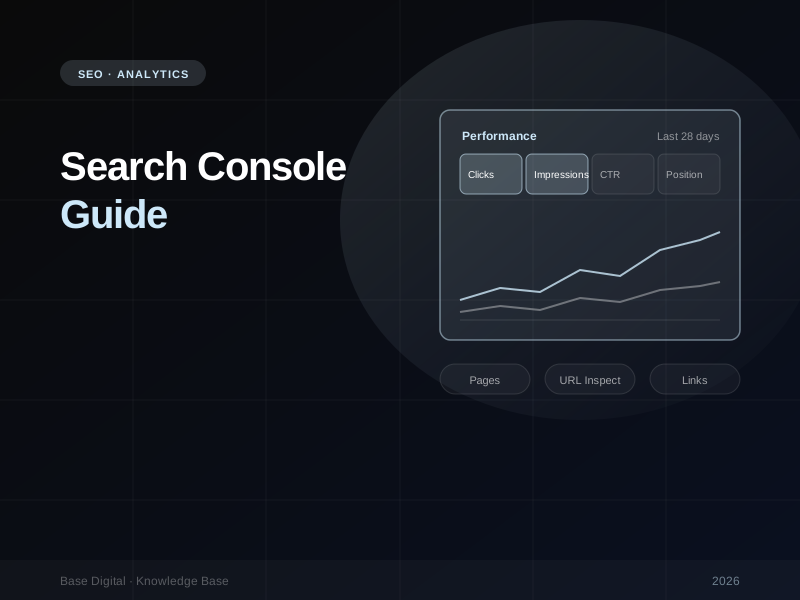
The Performance report shows clicks, impressions, click-through rate (CTR) and average position for your site in Google Search. On its own, the headline chart tells you very little. The value comes from segmenting it.
Segment by search type
The search type filter at the top separates Web, Image, Video and News results. Most businesses should live in Web, but if you sell visual products, Image search can be a meaningful and often overlooked source of traffic.
It's also worth knowing where AI features sit. Google confirms that appearances in AI Overviews and AI Mode are included in the Web search type of the Performance report, not split out into their own type. If impressions have climbed while clicks have stayed flat, AI features answering the question on the results page may be part of the reason.
Compare date ranges
Use the date filter's Compare tab to put this period next to the previous period, or the same period last year. Year-on-year comparisons are the most reliable for seasonal businesses. Switch to the Queries or Pages tab and sort by the difference in clicks to see exactly what grew or dropped.
Find queries you never targeted
Scroll through the Queries tab and you'll almost always find searches you never wrote a page for. Some will be irrelevant. Others are real demand you're ranking for by accident, often on page two, with a page that only mentions the topic in passing. Those are strong candidates for a dedicated page or a meaningful expansion of an existing one.
Use regex filters
Query and page filters support custom regular expressions. That sounds technical, but a few simple patterns go a long way. Filter queries matching how|what|why|best to see question-style searches, or exclude your brand name with "Doesn't match regex" to see how you perform for non-branded searches, which is the truest measure of your SEO.
High impressions, low CTR
Sort pages or queries by impressions, then look for rows with a lower CTR than you'd expect for their position. These are pages Google is already showing, but people aren't choosing. Common fixes include rewriting the title tag to match the search intent more closely, writing a description that gives a reason to click, adding structured data where relevant, and checking whether the page actually answers the query. It's one of the fastest SEO wins available because you're improving existing visibility rather than earning new rankings.
"The best opportunities are usually the searches Google already shows you for, but people aren't clicking."
Search Console Insights
If the Performance report feels like too much, start with the Insights report. It's a simplified summary built into Search Console that highlights top and trending pages, top and trending queries, traffic by country, other traffic sources such as Discover, Image and Video, and a split between branded and non-branded traffic. Clicking any item takes you into the full Performance report, already filtered. It's a good weekly starting point for anyone who isn't a specialist.
URL Inspection: your main diagnostic tool
When a specific page isn't performing, paste its address into the search bar at the top of Search Console. URL Inspection tells you whether the page is indexed, when Google last crawled it, whether it was found via your sitemap, which canonical you declared and which canonical Google actually chose, and whether any structured data was detected.
Run a live test to see the page as Googlebot sees it right now, including the rendered HTML and a screenshot. This is the quickest way to catch content that only appears after JavaScript runs, a stray noindex tag or a page blocked by robots.txt. Once you've fixed a problem, you can request indexing from the same screen.
The Pages report: what's indexed and what isn't
The page indexing report, labelled simply Pages (it replaced the old Coverage report), shows how many of your URLs are indexed and lists the reasons the rest aren't. The first thing to understand is that not every URL should be indexed. Google's own guidance says not to expect every URL on your site to be indexed. Redirects, deliberate noindex pages and duplicates belong in the "not indexed" list. What matters is whether your important pages are indexed.
The statuses that most often need attention:
- Crawled – currently not indexed. Google fetched the page and decided not to index it, at least for now. This is usually a quality or uniqueness signal: thin content, near-duplicates or pages with little to distinguish them. Improve or consolidate the page rather than repeatedly requesting indexing.
- Discovered – currently not indexed. Google knows the URL exists but hasn't crawled it yet. On larger sites this often points to crawl waste, weak internal linking or slow server responses.
- Duplicate, Google chose different canonical than user. You told Google one URL is the main version, and Google disagreed. Use URL Inspection to see which version it picked, then make your canonical tags, internal links and sitemap consistent.
- Not found (404) and server errors (5xx). Check whether these URLs matter. Redirect valuable ones, and treat repeated server errors as urgent.
Our technical SEO checklist covers how to fix the underlying causes of most of these.
Core Web Vitals: real-user data
The Core Web Vitals report shows how real visitors experience your pages, using field data from the Chrome User Experience Report rather than a one-off lab test. It groups similar URLs together and rates each group on Largest Contentful Paint (loading), Interaction to Next Paint (responsiveness) and Cumulative Layout Shift (visual stability), separately for mobile and desktop.
Because it's based on real-world data collected over time, fixes take a while to show up. Don't panic if a lab tool like PageSpeed Insights shows a different score. The lab test is a diagnostic snapshot; the Search Console report reflects what your actual visitors experience.
The Links report
The Links report shows your top linked pages from other sites, the sites linking to you most and, just as usefully, your internal links. Check that your most important service or category pages appear near the top of the internal links list. If a key page has only a handful of internal links, add contextual links from related pages.
Tracking AI visibility
Because AI Overviews and AI Mode appearances are counted within the Web search type, the Performance report is also your starting point for understanding AI visibility. It won't tell you everything, but tracking impressions and clicks on the queries most likely to trigger AI answers shows you where things are moving. For more on earning that visibility, see our guide to SEO in AI search.
Set up email alerts. Make sure the right people are listed as users with email notifications switched on. Search Console emails you about new indexing issues, manual actions and security problems, often before you'd notice any traffic drop.
A 15-minute weekly routine
You don't need to live in Search Console. Block out 15 minutes once a week and work through this list:
- Performance (5 minutes). Compare the last 28 days with the previous period. Note any page or query with a sharp drop or rise, and pick one high-impression, low-CTR page to improve.
- Indexing (4 minutes). Open the Pages report. Has the number of indexed pages changed unexpectedly? Are any new important URLs sitting in a "not indexed" status?
- Experience and enhancements (3 minutes). Check Core Web Vitals and any structured data reports, such as Products, Breadcrumbs or Videos, for new errors.
- Manual actions and security (1 minute). Confirm both say no issues detected. If either shows a problem, it takes priority over everything else.
- Log it (2 minutes). Write down what you saw and what you changed. Over time, this record is what lets you connect a change on the site to a change in results.
The bottom line
Search Console won't fix anything on its own, but it tells you where to look. Focus on a few reports, use comparisons and filters to find the real story, and check in for 15 minutes a week. That habit alone puts you ahead of most of your competitors.
When the reports surface issues you're not sure how to fix, start with our technical SEO checklist, or talk to us about SEO and we'll help you turn the data into a plan.